VLC Remote
- 4.5
- Rating
- 50.00K
- Installs
- $2.99
- Price

 Analysis by App-foxy
I installed VLC Remote because I wanted a simpler way to control VLC Media Player without reaching for my computer every time I paused a film, changed a track, or adjusted the volume. The app takes a very focused approach: it turns an Android or iOS device into a remote control for VLC running on a Mac, PC, or Linux computer. That narrow purpose is also its main appeal. It does not try to replace VLC, organize my entire media collection, or become another streaming service. It is designed to make the computer playing the media feel less tied to the desk.
That distinction matters before installing it. This is a remote companion for VLC Media Player, not a standalone video player. I still needed VLC on the computer, and the useful experience depended on getting the phone and computer to communicate properly. Once that relationship was working, the app felt practical in situations where a keyboard and mouse were inconvenient. When the connection was not ready, however, the app could not do much by itself.
From sitting at the desk to controlling VLC from across the room
I look at the move from a desk-bound VLC session to sofa-side control as more than a convenience: it changes how I plan the setup. In this section, I’ll focus on what needs to be ready before the phone can take over, and why a quick test at the computer can prevent interruptions later. That preparation also sets up the next question: how the workflow holds up when playback gets busy.
You May Also Like

 Blood Strike: 2.5 Anniversary
Blood Strike’s Loadouts Turn Every Drop Into a Tactical Gamble
A close look at Blood Strike’s custom loadouts: how fast access to signature weapons reshapes its battle royale rhythm, rewards preparation, and narrows the gap between fights.

 Pandora - Music & Podcasts
Pandora’s Music Is Easy to Start, but Harder to Recover
Pandora’s strength is its low-effort path from a seed to a station. Its weak spot is how much confidence it asks you to place in connection, setup, and quiet recovery.

 8 Ball Pool
 Is Built on Rivalries, Rematches, and Routine
A close look at the rivalries, rematches, shared routines, and unanswered safety questions that turn a quick pool match into a persistent mobile community.

 Samsung Music
’s Quiet Strength Is Playing What You Already Own
Its reach comes less from spectacle than from dependable access to a personal library. That simplicity is both the app’s strongest retention engine and its ceiling.

 AccuWeather: Weather Radar
AccuWeather Review: A Quick, Clear Forecast for Everyday Decisions
For everyday plans, the best forecast is the one you can understand quickly. AccuWeather makes rain timing, radar, and local conditions easy to act on, with a few trade-offs.

 Hill Climb Racing
Why Hill Climb Racing Still Turns Crashes Into One More Run
A tiny car, a bumpy hill and one more upgrade: Hill Climb Racing keeps resurfacing because its simple chaos makes every near-miss feel personal.
More From Our News Desk
View All News


The starting condition: VLC is already doing the playback
My typical starting point was a computer connected to a television or placed somewhere across the room. VLC handled the actual video or music, while my phone became the device I wanted to use for control. This is a useful setup for downloaded films, personal recordings, music files, and other media already accessible to VLC. The phone does not need to become the place where the file is stored; it acts as the control surface while the computer continues doing the playback work.
That arrangement immediately separates this app from ordinary mobile video players. A mobile player is useful when the media is on the phone or tablet. VLC Remote is more helpful when the media is on a computer and the computer is connected to better speakers, a larger display, or a home entertainment setup. I found it especially sensible for people who already trust VLC and do not want to migrate their files to another platform just to gain remote control.
The developer is Hobbyist Software Ltd, and the app has been available since May 10, 2010. Its long presence helps explain why the concept remains so straightforward: it solves one household problem rather than trying to become a complete media ecosystem. The current release is version 5.60 (5138), and the minimum operating system is 7.0. That makes it accessible on older compatible devices, although the quality of the experience still depends more on the computer-side VLC setup and the local network than on the age of the phone.
Preparing the connection before the first real test
The first important lesson is that installing the app is only one part of the setup. VLC on the computer must be prepared to accept remote control, and the phone must be able to reach that computer. I would not start this process five minutes before guests arrive for a film. It is better to test it while sitting near the computer, where correcting a setting is less frustrating.
Once the computer-side configuration is in place, the app can be used to find or connect to the VLC installation. The exact experience can vary with the network arrangement, so I treated the first connection as a setup task rather than expecting instant magic. On a simple home network, the handoff from phone to computer was logical: select the VLC instance, connect, and then use the phone for playback control. On a more complicated network, the computer may be visible to the internet but not to the phone locally, or the two devices may be connected in ways that prevent them from communicating.
The most useful preparation is a short connection rehearsal before relying on the app. I opened VLC, connected the remote, started a file, paused it, changed the volume, and closed the app. That small test answered the questions that matter in real use: can the phone reach the computer, does VLC respond promptly, and will the remote still be useful from the place where I plan to sit?
The step-by-step flow during playback
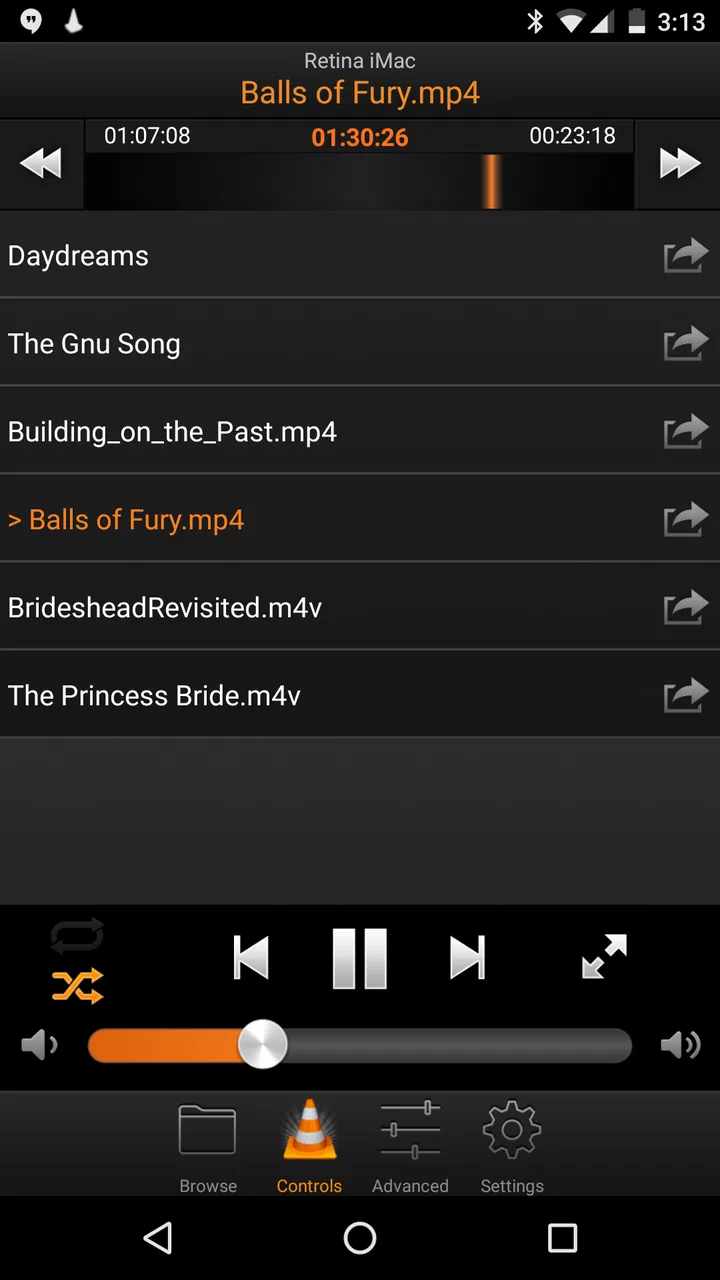
After connecting, my workflow was simple. I opened the remote, selected the active VLC setup, and used the phone to manage playback. The important controls are the ones I normally need when I am away from the keyboard: play and pause, moving through the current media, adjusting volume, and changing what VLC is playing. The app’s value comes from putting those actions within reach without interrupting the viewing position.
The difference is most noticeable during a long film. With a conventional keyboard, I might need to walk to the computer, find the right window, and make sure the keystroke goes to VLC rather than another application. With the remote, I could make the change from the sofa. That sounds minor, but repeated small interruptions are exactly where a dedicated remote earns its place.
I also found the workflow useful for music played through a computer connected to speakers. In that situation, the phone was not competing with VLC for playback; it was simply a convenient control point. I could leave the computer connected to the audio system and keep the phone with me. This is a better fit for the app than trying to use it as a way to browse media that is not available to VLC in the first place.
One practical tip is to think of the phone as a remote, not as a second media library. If I wanted to watch something stored on the phone, a normal mobile player was the more direct choice. If I wanted the computer to remain the source because of its files, display, or speakers, VLC Remote made more sense.
Handing control from the computer to the phone
The handoff between VLC and the phone is the heart of the experience. VLC remains responsible for opening and rendering the media, while the app sends commands from a separate device. This division is clean when everything is configured correctly. I could start playback at the computer, move away from the desk, and continue controlling the session from the phone.
That handoff also creates the app’s main dependency. If VLC is closed, the computer is asleep, the network changes, or the remote connection is lost, the phone cannot independently continue the session. It is not a replacement for the computer-side player. I had to think of the setup as a chain: the media file must be available to VLC, VLC must be running, the computer must remain reachable, and the remote must stay connected.
This is why I prefer testing the whole chain rather than judging the app from its interface alone. The phone controls may be perfectly clear, but they are only as reliable as the connection behind them. A user who expects the experience of a modern streaming app, where playback follows the account across devices, may find this arrangement old-fashioned. A user who already has a stable VLC computer setup may appreciate how little the app tries to change.
A realistic evening scenario
Imagine that I have connected a computer to the television and loaded a film in VLC. I begin at the desk because that is where the file is easiest to open. After starting playback, I take the phone to the sofa. A few minutes later, I pause the film to answer the door, then resume it without walking back to the computer. Later, I lower the volume because someone is asleep, and near the end I move to another file without standing up.
In this scenario, the app does not create the media experience; VLC and the computer already do that. What it removes is the repeated trip between the viewing position and the keyboard. That is a modest outcome, but it is concrete and useful. The app becomes more valuable as the computer is farther from the seating area or connected to equipment that is awkward to operate directly.
There is another handoff in this example that is easy to overlook: control passes back to the computer when I need to perform tasks outside playback. If I need to locate a file that VLC cannot see, change a desktop setting, or repair the connection, I still need the computer. The remote improves the playback portion of the evening, not every part of the media setup.
What the result feels like after the setup work
When the connection worked, the result was pleasantly direct. I did not need to keep a wireless keyboard beside me, and I did not have to use a mouse on a coffee table. The phone became a familiar, portable control device, while VLC continued to do what it already does well. For a VLC-based home cinema or music arrangement, that can be enough to make the setup feel much more comfortable.
The app’s rating is around 4.5 from roughly 2.1 thousand ratings, with about 342 written reviews, and it has over 50 thousand installs. I read those figures as signs of a focused product with a clear audience rather than proof that it will suit every media setup. People who need this exact bridge between a phone and desktop VLC are likely to value it much more than people looking for a general-purpose media controller.
It is also a paid app, priced at $2.99, with an Everyone content rating. For me, the price is easiest to justify when the computer is a regular part of my viewing routine. If I only watch media directly on a phone or use a television platform with its own remote, paying for a separate VLC controller would be unnecessary. The purchase makes sense because of the repeated convenience, not because the app replaces several other products.
Small workflow improvements that make a difference
One non-obvious strength is that the app can reduce the need to expose a full desktop interface during playback. VLC on a computer is powerful, but its menus and windows are designed for a desk. A phone remote gives me a more focused way to perform common actions while leaving the computer connected to the display. That is particularly helpful when the computer is being used as a dedicated media source rather than as a workstation.
A second useful insight is to keep the computer’s role stable. I got a smoother experience when VLC was already open and the media location was predictable. Constantly changing networks, putting the computer to sleep, or moving VLC between different sessions adds friction that the phone cannot hide. Treating the computer as a small media appliance makes the remote feel more dependable.
A third trade-off concerns control versus discovery. The app is good at controlling a known VLC session, but it is not the same as a polished streaming catalog that recommends content, remembers a cloud library, and synchronizes viewing across devices. If my priority is discovering something new quickly, a streaming service or a media-center platform may be better. If my priority is controlling files I already manage through VLC, this focused design is an advantage.
I would also keep the app available for guests only after testing the setup. A visitor can understand play and pause quickly, but connection problems, computer sleep, or an unprepared VLC installation can turn a simple remote into a troubleshooting exercise. The best workflow is to configure it in advance and hand over a phone that is already connected, rather than expecting someone unfamiliar with the setup to establish the link.
Where the flow breaks
The first breaking point is the initial configuration. This is not an install-and-play experience in the same way as a Bluetooth speaker remote or a television remote that pairs automatically. VLC must be ready on the computer, and the network path must allow the phone to communicate with it. Users who dislike configuring desktop software may find the first session more demanding than expected.
The second breaking point is network reliability. Because the phone is controlling another device, a weak or changing connection can interrupt the experience even when the video itself is playing perfectly on the computer. I would not blame the app for every disconnection, but the practical result is the same: the remote becomes unavailable until the connection is restored. A physical keyboard or a dedicated hardware remote can be more dependable in a network-sensitive room.
The third issue is scope. VLC Remote does not make a computer disappear from the workflow. I still needed the computer to launch VLC, prepare files, and solve problems. Anyone wanting a complete living-room interface should look at a media-center solution instead. Anyone wanting to cast from a phone may also prefer a casting-focused app. Those alternatives are better when the desired outcome is centralized browsing or device-to-device streaming rather than remote commands for desktop VLC.
There is also a psychological limitation: a phone is easy to misplace, lock, or drain. A dedicated remote stays associated with the television, while a phone is used for messages, calls, and other tasks. In my experience, that did not cancel the convenience, but it meant the app was most useful when I already had the phone nearby. It is a strong software substitute for a keyboard, not necessarily a perfect substitute for every physical remote.
Who should use it, and who should skip it
I would recommend it to someone who already uses VLC on a Mac, PC, or Linux computer and wants to control playback from a comfortable distance. It is particularly suitable for a computer connected to a television, a desktop connected to speakers, or a home setup where the media files remain on the computer. The app is also a sensible choice for people who want a small, dedicated solution instead of replacing VLC with a larger media platform.
I would skip it if my media habits are mainly phone-based, if I expect cloud synchronization between devices, or if I do not want to configure VLC for remote access. It is also not the best answer for someone looking for a universal remote that controls a television, receiver, lights, and media player together. Its strength is precisely its narrow relationship with VLC, so buying it for a broader smart-home role would lead to disappointment.
Before paying, I would make sure the computer can run VLC reliably, that the phone and computer can communicate on the intended network, and that the viewing setup actually benefits from remote control. Those checks are more important than the app’s low entry price. If the computer is always within arm’s reach, the convenience may not justify another app. If the computer is across the room every evening, the calculation changes quickly.
My final take after following the complete workflow
VLC Remote delivered what I wanted: a phone-based way to control VLC without repeatedly returning to the computer. Its best quality is not visual polish or a long list of unrelated tools, but the way it completes a specific handoff from desktop playback to handheld control. Once the setup was ready, the outcome was simple and useful.
The limitations are equally clear. It depends on VLC, depends on the connection between devices, and does not replace the computer for media preparation or troubleshooting. That makes it less suitable for people expecting a complete streaming or media-center experience. For the right user, though, those boundaries are reasonable because the app stays focused.
At $2.99, I see it as a practical purchase for regular VLC users rather than an essential download for everyone. Hobbyist Software Ltd has kept the idea clear: let the computer remain the player and let the phone handle the controls. If that is exactly the gap in your setup, I would recommend giving VLC Remote a try. If you want a broader entertainment hub, I would choose a different category of tool instead.
FAQs for VLC Remote
01What is VLC Remote and what can I use it for?
VLC Remote is a companion app that lets you control VLC Media Player from an Android or iOS device. After connecting it to VLC on a computer, you can play, pause, stop, rewind, fast-forward, adjust the volume, browse media, and manage playlists without staying at your desk. It is especially useful when VLC is connected to a television or another room’s sound system.
02How do I connect VLC Remote to VLC Media Player?
To use VLC Remote, you generally need VLC Media Player installed on your computer and the phone and computer connected to the same local Wi-Fi network. VLC’s remote-control interface must be enabled, and the app may require the computer’s IP address or a pairing step. Setup is usually straightforward, but firewall settings, guest networks, or different Wi-Fi connections can prevent discovery.
03Does VLC Remote work with Android, iPhone, and every version of VLC?
VLC Remote is designed for mobile devices, but the exact experience depends on the app version, operating system, and desktop VLC release. Basic controls are normally available on supported Android and iOS devices, while advanced features may vary. Before downloading, check the current store listing and compatibility information, particularly if you use an older phone or an unusual VLC installation.
04Can VLC Remote play videos directly on my phone without a computer?
VLC Remote is primarily intended to control VLC running on another computer, rather than acting as a completely independent media player. The phone functions as a remote control and browsing interface, while playback takes place through the connected VLC installation. If you want to watch local files directly on your mobile device, the separate VLC media player app may be more appropriate.
05Is VLC Remote free, and are there any privacy or security concerns?
Availability, pricing, advertisements, and optional purchases can differ between the Android and iOS versions, so review the official store page before installing. The app typically communicates with VLC over your local network, meaning it should be used on a trusted Wi-Fi connection. Avoid exposing VLC’s remote interface to the public internet, and keep both the app and desktop player updated.
Pros
- Controls VLC playback from anywhere on the same Wi‑Fi network.
- Supports essential controls like volume
- seek
- pause
- and track selection.
- Works with VLC on Windows
- macOS
- and Linux computers.
- Keeps playback on the computer while using the phone as a convenient remote.
- Lightweight design uses little storage and battery during normal use.
Cons
- Requires VLC’s remote interface to be configured before connecting.
- Phone and computer must usually share the same local network.
- Setup can be confusing for users unfamiliar with VLC preferences.
- Limited usefulness when controlling VLC outside the home network.
- Interface may feel dated compared with newer remote-control apps.

VLC Remote
Gallery